
Caution
Do not add any details of the private event to the event post!
In the events listing, the ability to click into a private event has been removed. There are a couple of ways however to access the private event page:
- From another single event, using the previous event or next event links which are available at the bottom of the event.
- You can also access via a direct url.
Of course you would not want any details of a private event being discoverable via the website. Simply follow the instructions detailed below.
Step 1: Add the Title
Simply title the event “Private Event”. As per the caution above do not add anything into the post.
Step 2: Add the Date and Time
From the sidebar select the the “Event” tab (not “Block”) and add the event Date and Time, for example:

Step 2: Add the Venue
Also in the sidebar, add the “Venue”.
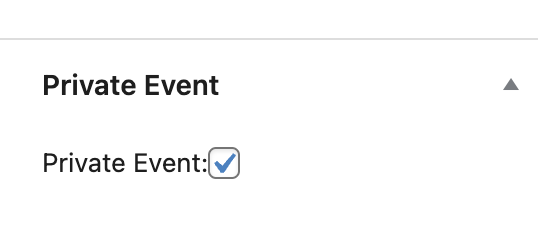
Step 3: Mark the Event as “Private”
Scrolling further down the sidebar, importantly, check the event as “Private”. This step is crucial as it removes functionality that normal events have.
Step 4: Publish the event
All that’s left is to publish the event, and check on the front-end of the site to make sure that the date, time and venue are correct.